Getting started · 1:43
Save and restore your setup
Save your EliteXCharts setup, keep versions, go back to an earlier one and open it on another computer, in about 2 minutes.
Chapters
Step by step
- Save your setup with Menu, Save now, or Ctrl+S: it saves over the setup in use and goes to the cloud
- Use Save as to keep a new named setup without losing the old one
- See every save in Save history: in use, in the cloud, when, and on which computer
- Pin favorites with the star: the platform keeps your last 50 saves and never removes a favorite
- Restore an earlier setup: confirm, and the platform restarts with it
- Sign in on another computer and your most recent save comes from the cloud
- When you close the platform, choose Save, Save as or Close without saving (auto-save starts off)
- After a sudden shutdown, the Safety Save brings you back to where you left off
What the narrator says
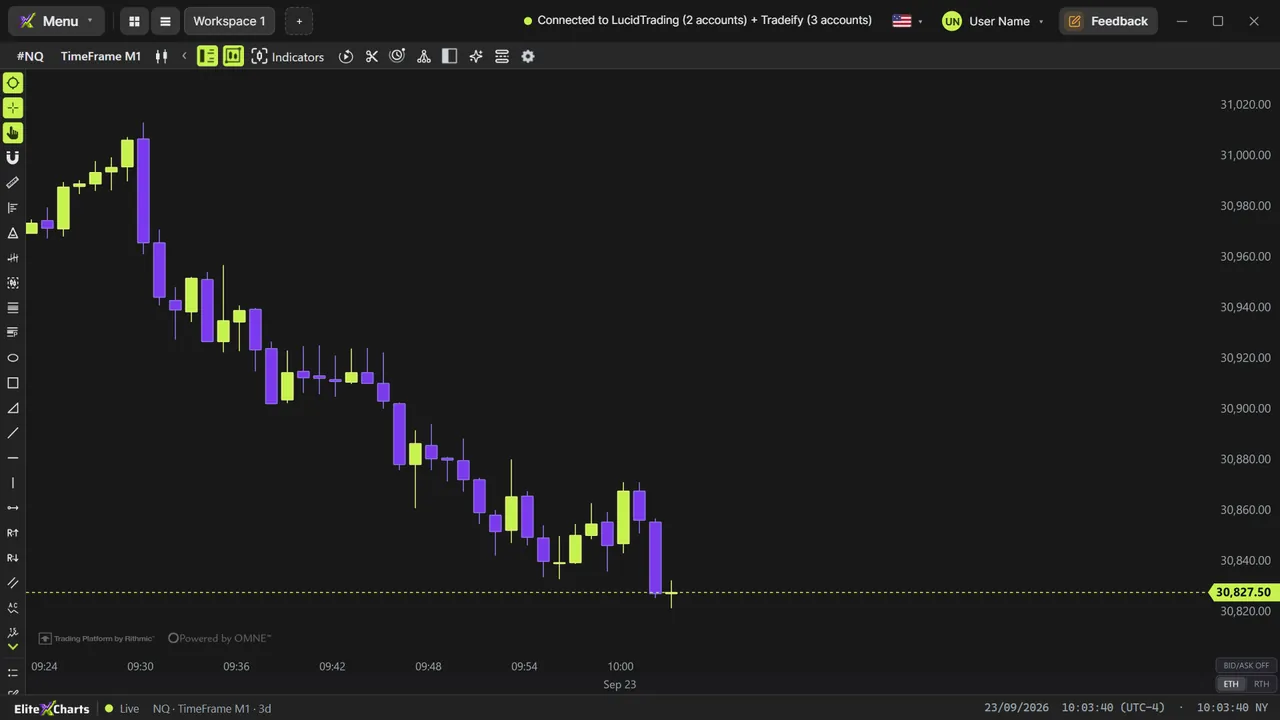
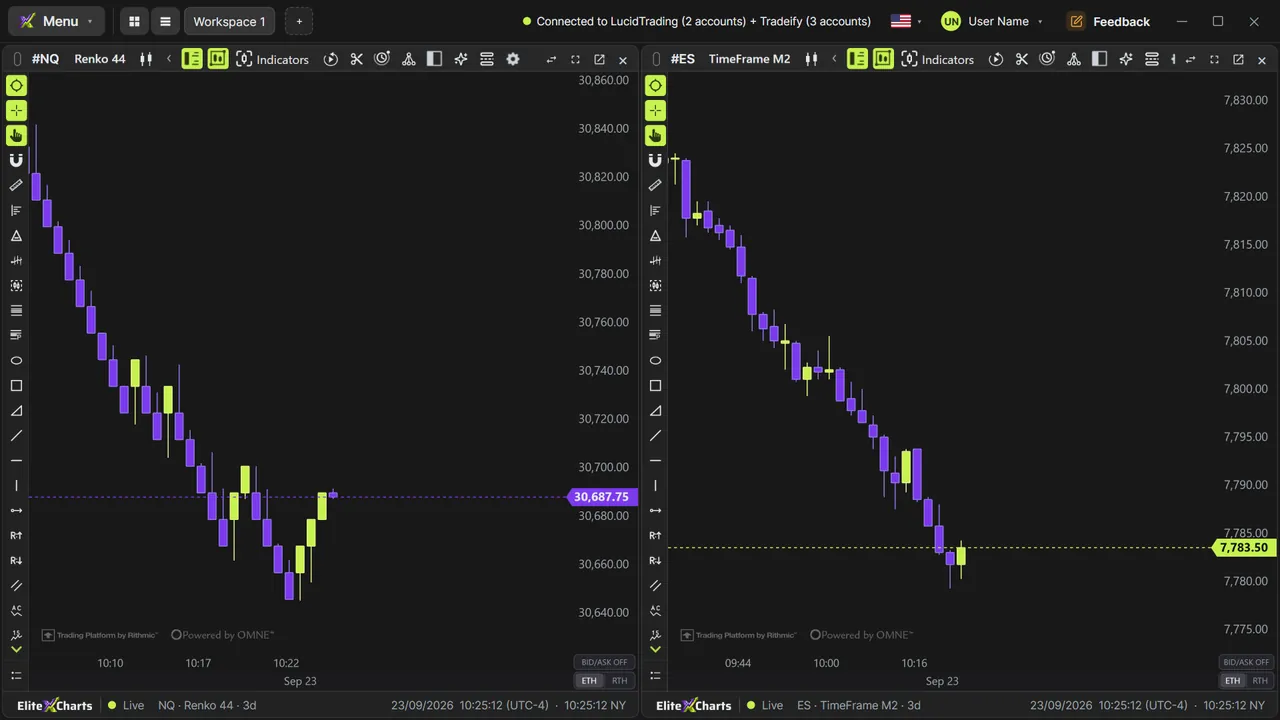
0:08In EliteXCharts, your setup is your workspaces, charts, drawings, indicators and themes. Let's save it, keep versions, go back to an earlier one, and open it on another computer.
0:20When your setup is ready, open the Menu and click Save now, or press Control S. It saves over the setup in use, and sends a copy to your account, in the cloud.
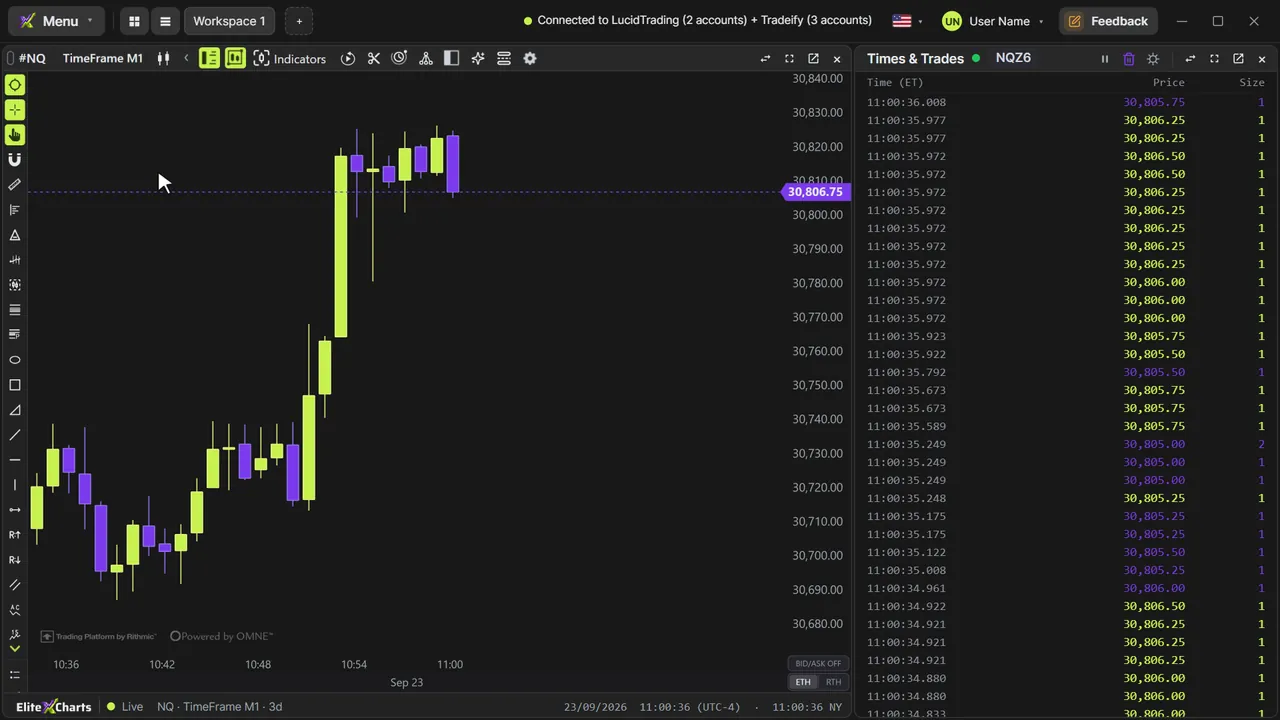
0:31Want to try a new layout without losing this one? Use Save as. Name it NQ chart only, and save. That's now the setup in use: close the Times and Trades, click Save now, and NQ scalp stays exactly as it was.
Read the full transcript
0:46Save history lists your saves: the one in use, which ones are in the cloud, when they were saved, and on which computer. Pin your favorites with the star. The platform keeps your last fifty saves, and never removes a favorite.
1:00To go back, click Restore on NQ scalp. The platform asks you to confirm, restarts, and opens exactly as that setup was saved.
1:10On another computer, sign in with the same account. The platform brings your most recent save from the cloud, and the saves from your other computers show up in the history, ready to restore.
1:20Auto-save starts off, so when you close the platform, it asks: save, save as a new setup, or close without saving. And if your computer shuts down suddenly, the Safety Save brings you back to where you left off.
1:33Save now updates, Save as starts a new version, and Save history takes you back, on any computer you sign in to.