Getting started · 2:07
Platform tour
Learn your way around EliteXCharts, from the top bar and the Menu to workspaces, widgets and the mosaic, in under 3 minutes.
Chapters
Step by step
- Get to know the top bar: the Menu, layout button, widget list, workspace tabs and connection status
- Open the Menu: connections, themes, order sounds, risk manager, shortcuts, guided tour and Help Center
- Rename, clone or export a workspace by right-clicking its tab, and create a new one with the plus button
- Add a chart, order book, Times & Trades, accounts, journal or copy trading, up to 16 per workspace
- Arrange the mosaic: drag a widget by its bar, pull the edges to resize, or apply a ready-made layout
- Swap, expand, detach to another monitor or close a widget, and manage them all from the widget list
- Switch to English or Portuguese with no restart, see your subscription in your account, and send Feedback
- Save your workspaces to the cloud from the Menu or when you close the platform, since auto-save starts off
What the narrator says
0:08Welcome to EliteXCharts. In this video, you'll find your way around the platform: the top bar, the Menu, workspaces, and how widgets sit together in the mosaic.
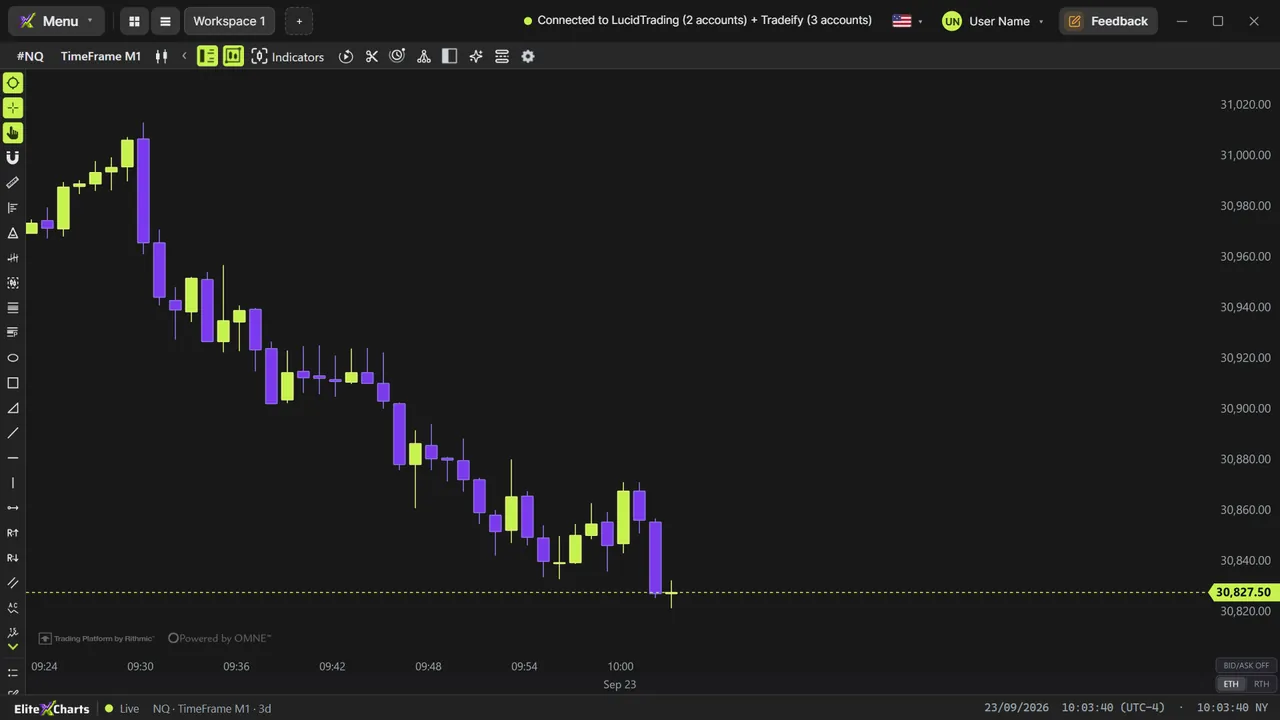
0:18Everything starts at the top bar. On the left, the Menu, the layout button and the widget list, then your workspace tabs. On the right, the connection status, the language, your account and Feedback.
0:31The Menu holds the whole platform: saving your setup, connections, themes, order sounds, the risk manager, shortcuts, the guided tour and the Help Center.
Read the full transcript
0:42Each tab is a workspace: its own screen, with its own widgets. Right-click a tab to rename, clone or export it. A double-click renames it, too.
0:52The plus button adds a widget here, or creates a new workspace. A new workspace starts empty: click Choose widget and pick one. Chart, order book, Times and Trades, accounts, journal or copy trading, up to sixteen per workspace.
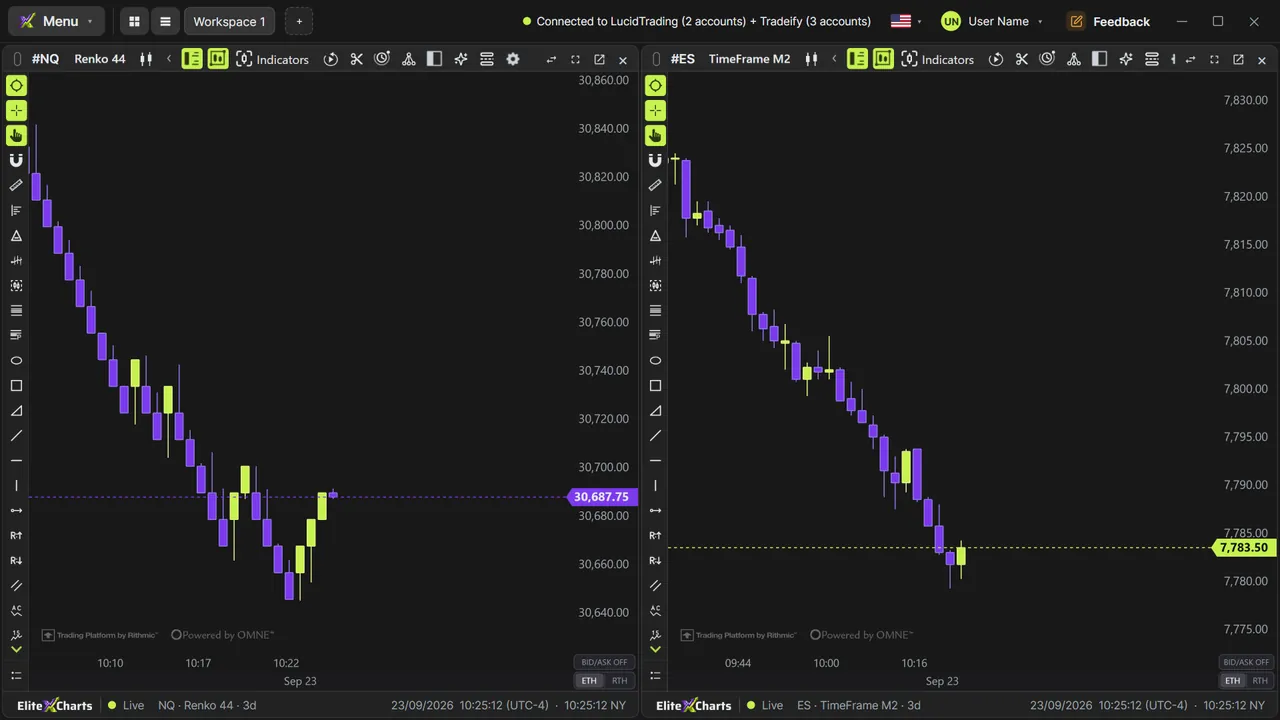
1:08Widgets sit side by side in a mosaic. Drag one by its bar to move it, and pull the edges to resize. The layout button applies a ready-made arrangement: open widgets are kept, and new slots start empty.
1:21Each widget has its own controls: swap places with another panel, expand it to full screen, or detach it to another window or monitor. The cross closes it.
1:31The widget list shows everything open in this workspace. Bring one to the front, float it in its own window, or close it. Hover a row, and the platform highlights that widget.
1:42On the right, switch the language between English and Portuguese, live, with no restart. Your account holds your subscription, and Feedback sends us a problem, a suggestion or a rating.
1:53Your workspaces are saved to your account, in the cloud. Auto-save starts off, so use Menu, Save now, or save when you close the platform. Now you know your way around EliteXCharts.