
Structure
Order Blocks
Institutional order blocks (SMC/ICT).
Real example in the platform
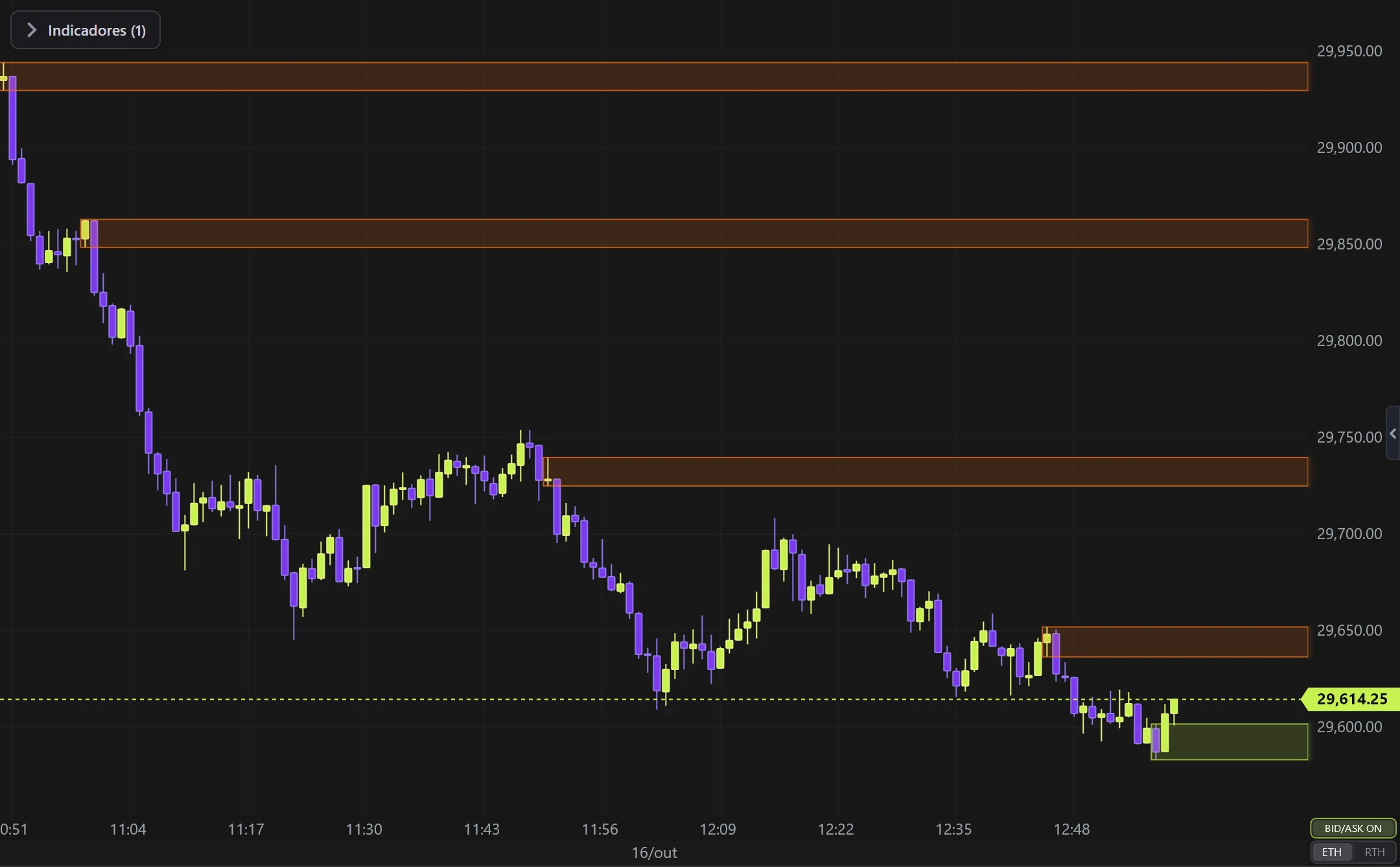
Order Blocks on the NQ, 1-minute candles built from real ticks (October 16, 2026, Rithmic feed) — a screenshot of the platform itself, factory settings.
What it does
- Marks the last opposite candle before an impulse that breaks it — a likely reaction zone.
- Bullish = last down candle before breaking up; bearish = last up candle before breaking down.
- The box disappears once the block is mitigated (price returns into it).
Options
- Colors, opacity, hide mitigated, how many to show, box on body or full range.
Settings
Everything you can change in the indicator's settings dialog, in the same order as in the platform:
- Hide mitigated
- How many to show (per side)
- Box at body (else H/L range)
- Opacity
- Colors
- Bullish block
- Bearish block
How to add it in EliteXCharts
- Open a chart and click the Indicators icon in the chart header.
- Pick the Structure category and choose Order Blocks.
- Click Add. Double-click the indicator (or use its gear) to open the settings.
- Or ask the AI Assistant: "add the Order Blocks".
Frequently asked questions
What does the Order Blocks indicator do?
Institutional order blocks (SMC/ICT). Marks the last opposite candle before an impulse that breaks it — a likely reaction zone. Bullish = last down candle before breaking up; bearish = last up candle before breaking down. The box disappears once the block is mitigated (price returns into it).
How do you read the Order Blocks?
Colors, opacity, hide mitigated, how many to show, box on body or full range.
How do I add the Order Blocks to a chart in EliteXCharts?
Open a chart and click the Indicators icon in the chart header. Pick the Structure category and choose Order Blocks. Click Add. Double-click the indicator (or use its gear) to open the settings. Or ask the AI Assistant: "add the Order Blocks".
Related indicators
Swing Highs & Lows
Marks the structural PIVOTS (swing highs and lows) on Renko.
real screenshotHigher Timeframes (right)
Candles of HIGHER timeframes in a strip on the right side.
real screenshotAMD Cycle
Accumulation → Manipulation → Distribution cycle over the HIGHER timeframe candle.
real screenshotHTF Power of Three
The candles of a HIGHER timeframe on the right of the chart, the last one forming live: ICT's Power of Three…
real screenshotTry it on your own chart
Every feature on every plan — 6 months, 1 year or lifetime.
See plans & pricing