
Tools
Hour Filter
Shows ONLY the candles from the hours you choose — every day.
Real example in the platform
Hour Filter on the NQ, 1-minute candles built from real ticks (October 16, 2026, Rithmic feed) — a screenshot of the platform itself, factory settings.
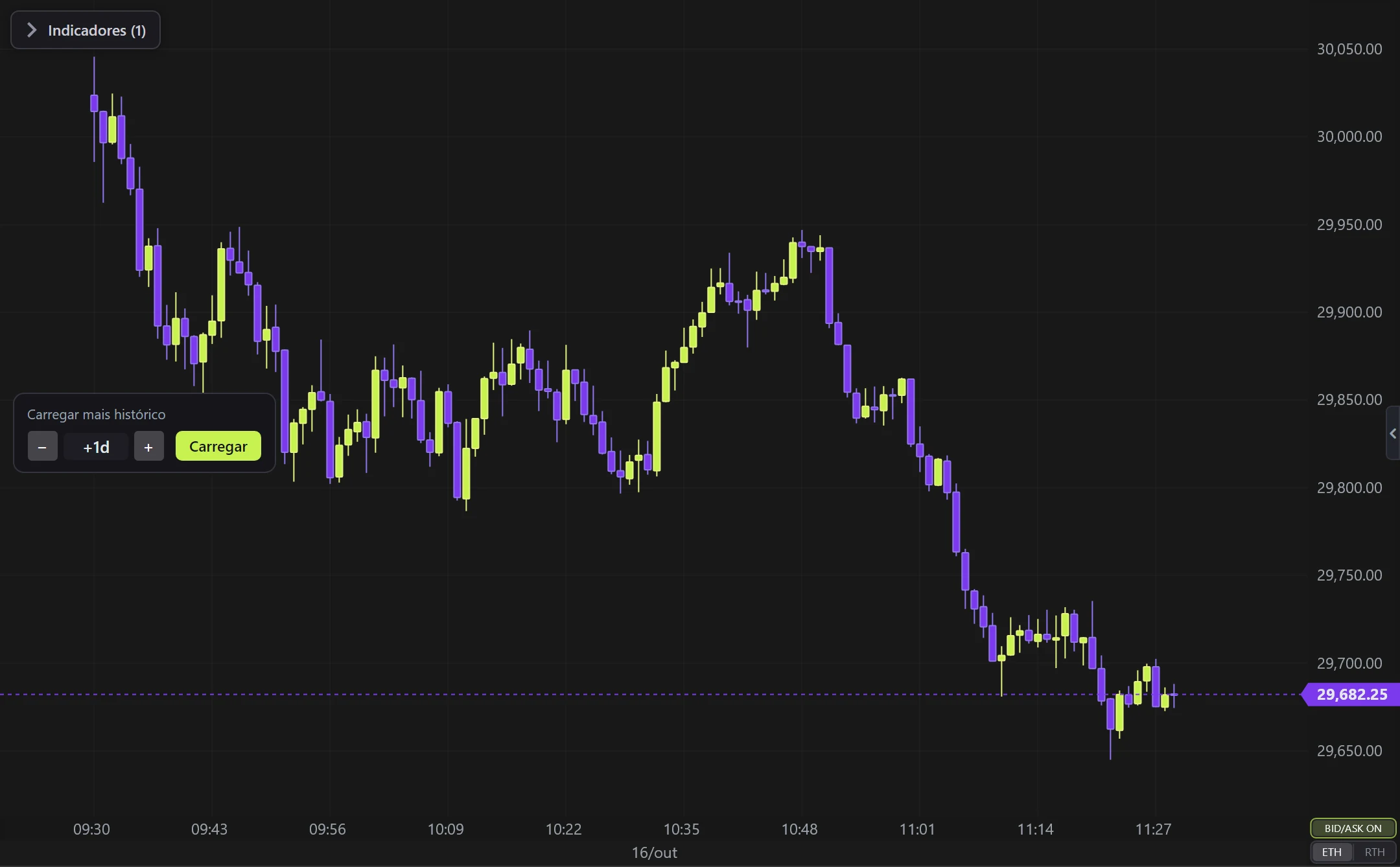
What it does
- You set START and END (New York time, like the sessions). Default: 09:30 to 11:30.
- Candles outside the window leave the chart and the remaining ones sit SIDE BY SIDE, one day after the other — great for studying just the open.
- Indicators, VP, VWAP and drawings then consider only what is visible (same as the ETH | RTH selector).
- It adds up with the ETH | RTH corner selector: a candle must pass both.
Options
- Start and End. Start GREATER than end = a window that crosses midnight (e.g. 18:00 to 02:00). Start EQUAL to end = the whole day.
- The legend eye turns the filter off without losing the settings; removing the indicator brings every candle back.
How to read
- The candle's OPEN time is what counts. On Renko/Tick/Delta the candle is kept if it started inside the window.
Settings
Everything you can change in the indicator's settings dialog, in the same order as in the platform:
- Start
- End
- Only candles that open inside the window stay on the chart, every day. Start greater than end = crosses midnight. The legend eye turns the filter off.
How to add it in EliteXCharts
- Open a chart and click the Indicators icon in the chart header.
- Pick the Tools category and choose Hour Filter.
- Click Add. Double-click the indicator (or use its gear) to open the settings.
- Or ask the AI Assistant: "add the Hour Filter".
Frequently asked questions
What does the Hour Filter indicator do?
Shows ONLY the candles from the hours you choose — every day. You set START and END (New York time, like the sessions). Default: 09:30 to 11:30. Candles outside the window leave the chart and the remaining ones sit SIDE BY SIDE, one day after the other — great for studying just the open. Indicators, VP, VWAP and drawings then consider only what is visible (same as the ETH | RTH selector).
How do you read the Hour Filter?
The candle's OPEN time is what counts. On Renko/Tick/Delta the candle is kept if it started inside the window.
How do I add the Hour Filter to a chart in EliteXCharts?
Open a chart and click the Indicators icon in the chart header. Pick the Tools category and choose Hour Filter. Click Add. Double-click the indicator (or use its gear) to open the settings. Or ask the AI Assistant: "add the Hour Filter".
Related indicators
Try it on your own chart
Every feature on every plan — 6 months, 1 year or lifetime.
See plans & pricing