Execution · 4:28
Chart Trading from zero
Learn Chart Trading in EliteXCharts from zero, on a live account, in under 5 minutes.
Chapters
Step by step
- Pick the account and see every account's open trade, with live P&L
- Set the account rules (goal, drawdown, daily loss limit and consistency) and follow them on the panel
- Hide the panel items you don't use, and find copy trading right on the chart
- Buy at market with commissions counted, and place limit and stop orders with Shift and Alt
- Trade the micro from the mini with cross-trade
- Build a custom strategy ($500 target, $200 stop) and preview it before you click
- Watch your daily goal, daily loss limit and drawdown as lines on the chart
- Drag the target and the stop, and split a target into two partial exits
What the narrator says
0:08Welcome to EliteXCharts. In this video: Chart Trading, from zero, on a live account. Your accounts, their rules, a custom strategy, cross-trade, and splitting a target.
0:20On the chart header, click the Chart Trading button. The panel opens on the right side of this chart, and the candles make room for it. Each chart has its own panel.
0:30First, the account. The picker groups your accounts by login. The ones with an open trade come first, with their open P and L, live. So you can follow every account without switching to it.
Read the full transcript
0:42Pick a live account, and the account box takes the color of its type: green, for a funded account. The panel says REAL MODE: orders go straight to the broker. If you want a confirmation, it's in Extra settings.
0:55Next, the account's rules. Right below your balance, Account today asks for the drawdown. Click, and fill in the goal, the maximum drawdown and its type, the daily loss limit, and the consistency rule.
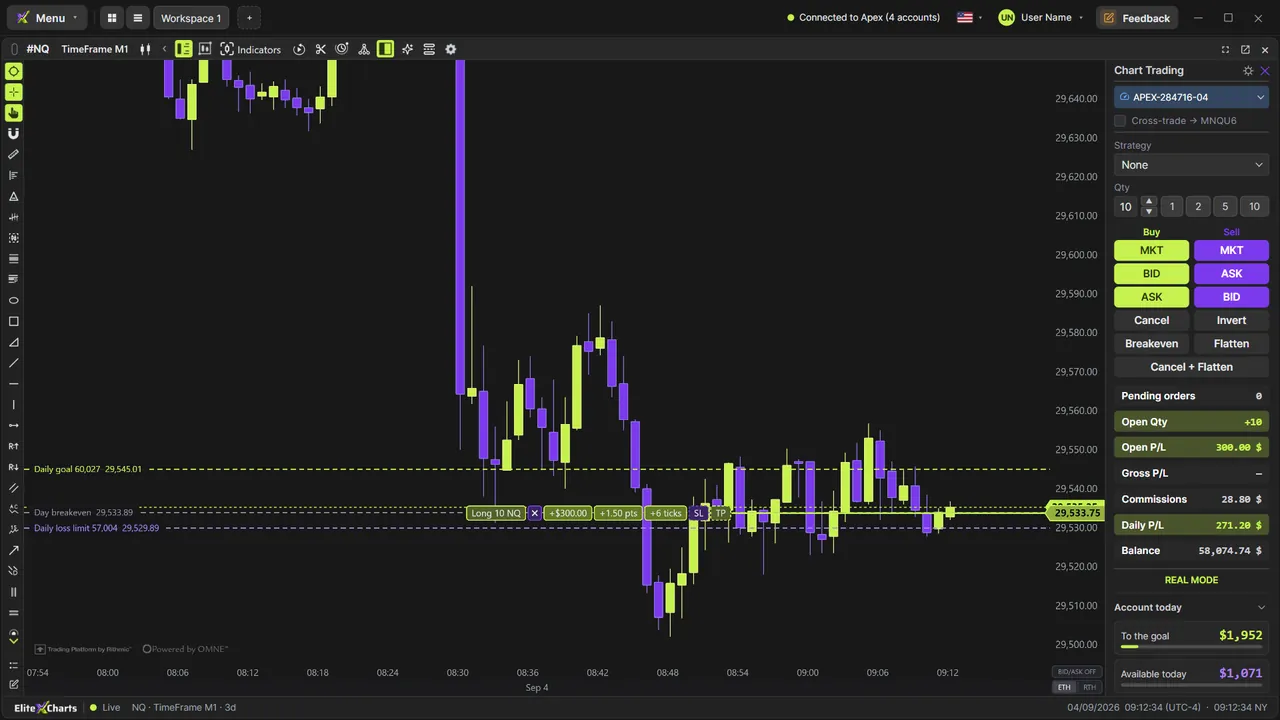
1:10Now Account today shows your day: how much is left to today's goal, and how much is still available today. Then the goal, the daily limit, and the drawdown: the floor that blows the account.
1:22At the top, set the quantity, or use a shortcut. MKT buys or sells at market, BID and ASK send limit orders at the best prices, and Cancel, Invert, Breakeven and Flatten manage the trade.
1:36The gear lets you choose what the panel shows. Uncheck what you don't use, like the BID and ASK buttons, and the panel gets cleaner.
1:44Copy trading is here too. Click its icon on the chart header, and its section appears in the panel. This account is the master of a copy group, and the gear opens the group's settings. But copy trading has a tutorial of its own. So let's close it, and turn the icon off.
2:01Click MKT to buy one contract. The position shows on the chart, with its result in dollars, points and ticks. The cross closes it at market. Each fill pays its commission, so the Daily P and L is your net result.
2:16Now, the mouse. Hold Shift, and the chart previews a buy at the cursor: below the price, a limit. Above it, a stop. Alt does the same for a sell. Click, and the order is working.
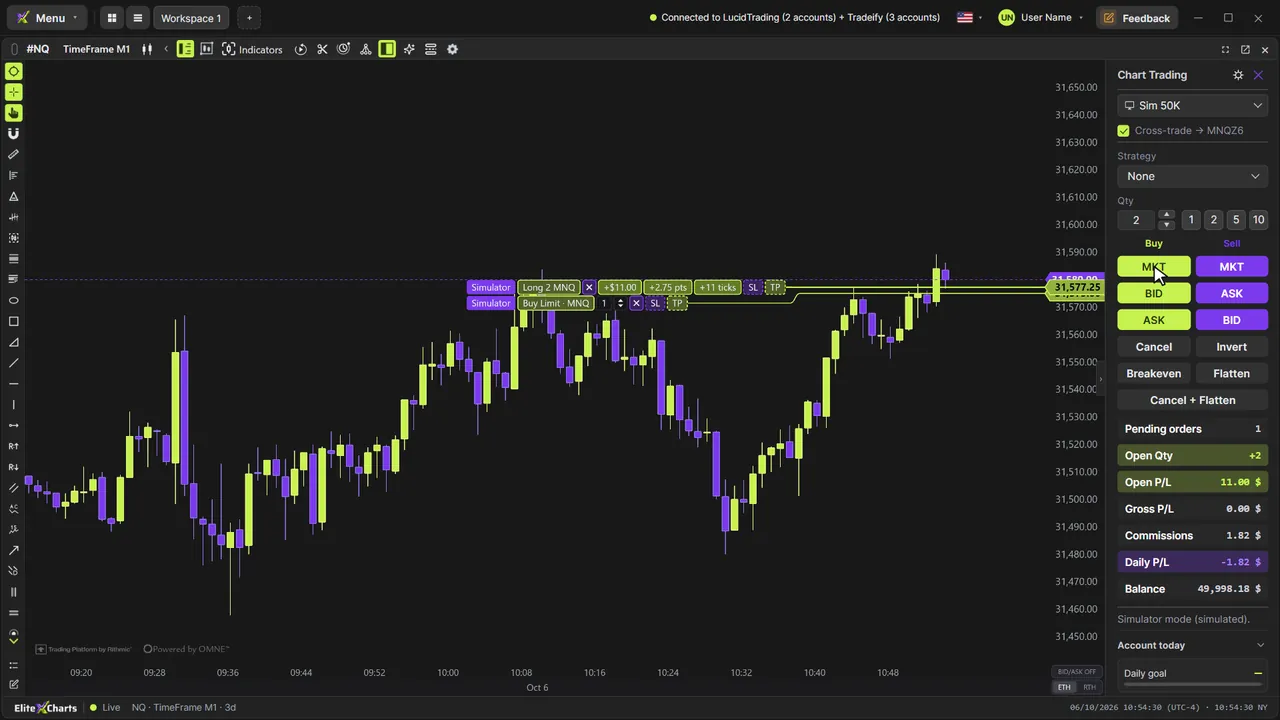
2:28Now check Cross-trade. The mini's order turns gray and locked, and new orders go to the micro: Shift and click, and it's a buy limit on MNQ. Uncheck it, and it's the other way around. Cancel only clears the side that's active.
2:43Now, a strategy, so every order is born with a target and a stop. Pick Custom, choose Cash, and type 500 for the gain, and 200 for the loss. Save it with a name, and it stays in the list.
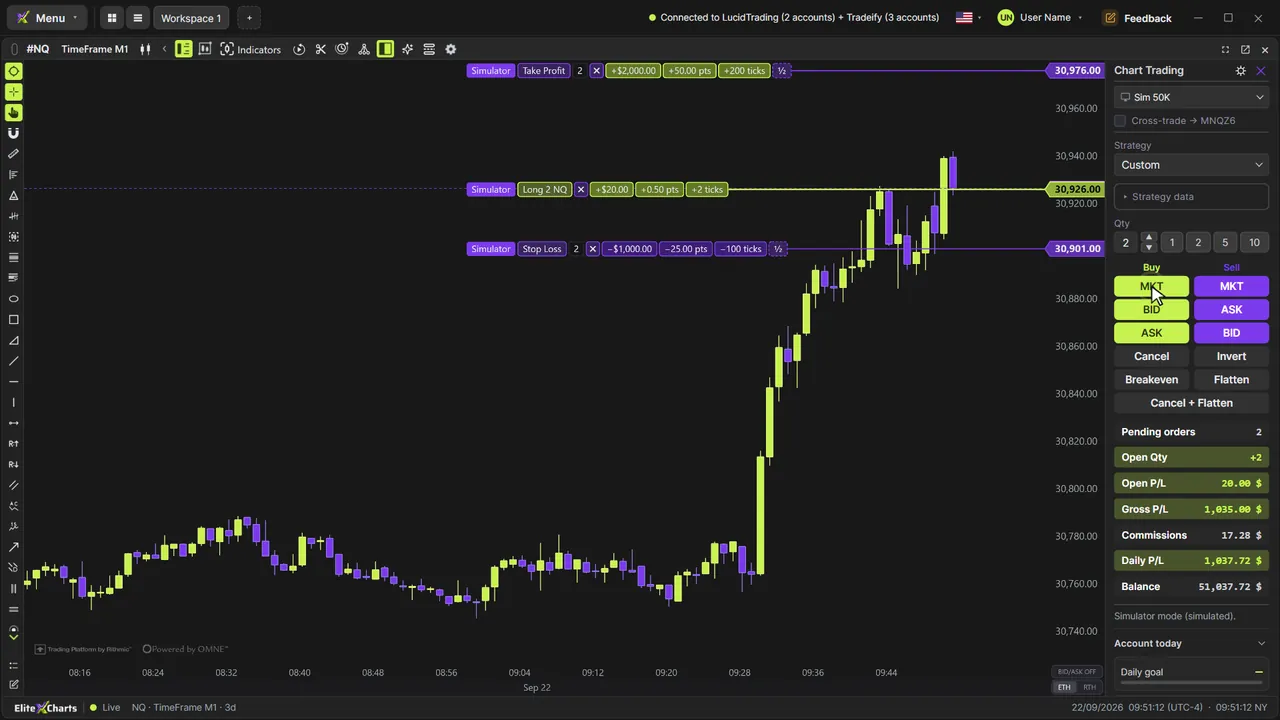
2:56Hold Shift over the chart. Before you click, the preview shows the entry, the target, and the stop. Roll the wheel to change the quantity. The 500 and the 200 are for the whole position, so with more contracts, the target and the stop come closer.
3:11Click, and the buy limit is working, with its target and stop attached. When it fills, they go live around your fill price.
3:19And with a position, your account shows up on the chart: the daily goal, the daily loss limit, and the account drawdown, each one a line at the price where this trade takes your account there. They're calculated from the rules you set for the account. That's why setting up your account correctly matters: it's how you get the most out of the platform.
3:40To adjust them, just drag. Before you even let go, the line shows the result at that price, in dollars, points, and ticks. The stop a little lower, and the target a little higher.
3:53And with more than one contract, you can split any leg in half, in one quick move. Drag its half handle, and half of the target goes to a new price: two partial exits, right on the line. Only in EliteXCharts.
4:07Flatten closes the position at market, and the panel adds up every commission. The Daily P and L shows what you really made.
4:15That's Chart Trading in EliteXCharts: your accounts at a glance, the rules on the panel, a strategy with a live preview, cross-trade, and partial exits you simply drag.