Accounts & risk · 2:12
The Accounts widget
Learn to see and organize all your accounts in one live table with the Accounts widget in EliteXCharts, in under 3 minutes.
Chapters
Step by step
- Open the Accounts widget from the + next to the workspace tabs, and expand it to the whole screen
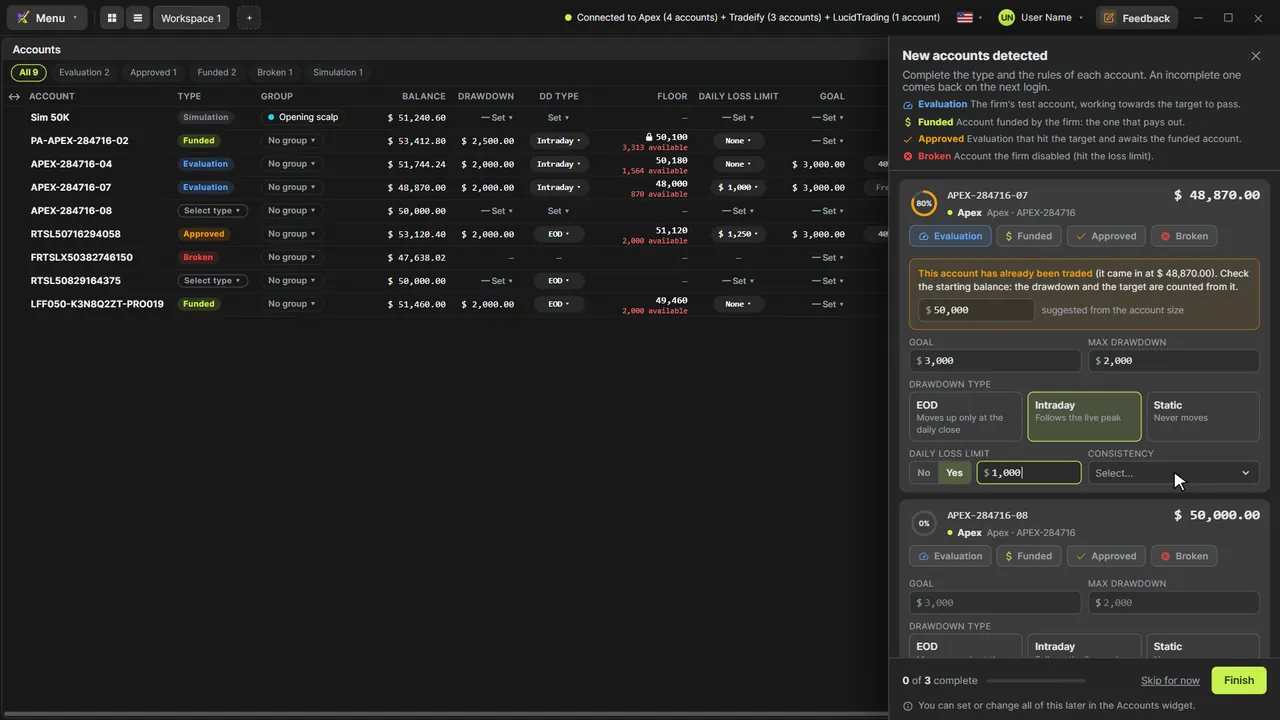
- Read each row: balance, drawdown and floor, daily loss limit, goal, position, results and commissions
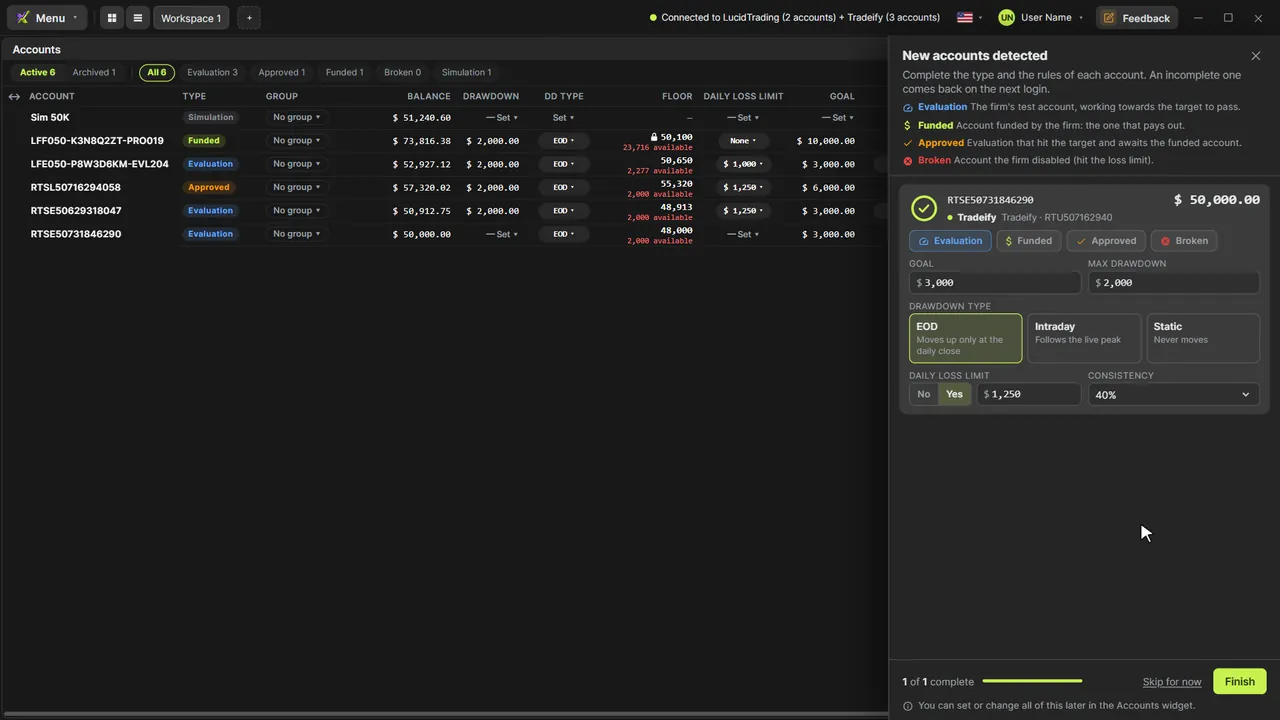
- Mark each account's type (Evaluation, Funded, Approved or Broken) from its pill or with a right-click
- Watch two types change on their own: Approved when a goal is hit and you go flat, Broken at the floor
- Filter by type with the chips on top, and organize the table into sections by type or by Rithmic login
- Build your own groups with a name and a color, organize by group, and move an account from its group pill
- Drag columns to reorder or resize them, and use the gear to choose which columns and accounts to show
- Create a simulation account from the + on the header, with the name and starting balance you choose
What the narrator says
0:08Welcome to EliteXCharts. In this video, you'll meet the Accounts widget: every account from your Rithmic logins, plus your simulation accounts, in one table.
0:18To open it, click the plus next to the workspace tabs and pick Accounts. It opens over your chart, and the expand button gives it the whole screen.
0:27Each row is one account: the balance, the drawdown and its floor, the daily loss limit, and the goal with what's left. Further right: the position, open and realized results, and commissions, updated every second.
Read the full transcript
0:40The colored pill is the account type: Evaluation in blue, Approved in amber, Funded in green, Broken in red, and Simulation in gray.
0:51A new account comes in without a type. Click Select type and pick one: Evaluation, Funded, Approved or Broken. Right-clicking the row works too.
1:01Two types change on their own: an evaluation that hits its goal turns Approved when you go flat, and an account that falls to its floor turns Broken.
1:10The chips on top filter by type, with a count on each. Click Evaluation to see only your evaluations, and All brings everything back.
1:19Organize splits the table into sections. By Type, each type gets its own. By User, each Rithmic login gets its own: Apex, Tradeify, and Lucid.
1:30Groups are yours to name. Click Groups, then New group. Type a name, like your strategy, pick a color, and check the accounts that belong to it.
1:39Organize by Group, and each group gets its own section, in its color. To move an account, click its group pill and choose another one.
1:47The columns are yours too. Drag a title to reorder it, drag its edge to resize, and the gear chooses which columns and accounts to show.
1:56And the plus on the header creates a simulation account, with the name and the starting balance you choose.
2:03That's the Accounts widget in EliteXCharts: all your accounts, their types, and a view that fits the way you trade.